How to Migrate Your Synology NAS: 4 Methods Compared
Compare Synology Migration Assistant, HDD migration, Hyper Backup, and manual rsync. Includes cross-platform migration to TrueNAS and QNAP.
TL;DR
Four Synology migration methods: Migration Assistant (Synology-to-Synology only), HDD migration (same-brand hardware swap), Hyper Backup (partial data), and manual rsync. Cross-platform moves to TrueNAS, QNAP, or other storage need rsync or a dedicated tool. syncopio handles Synology migrations to any NFS/SMB destination with parallel transfers, checksum verification, and a real-time dashboard.
Whether you’re upgrading to a newer Synology, consolidating multiple NAS units, or moving to a different platform entirely, choosing the right migration method can save you days of downtime. This guide compares all four approaches and tells you when each one makes sense.
Method Comparison at a Glance
| Factor | Migration Assistant | HDD Migration | Hyper Backup | rsync / syncopio |
|---|---|---|---|---|
| Downtime | Moderate | High | Low | Lowest |
| Preserves config | Yes | Yes | Yes | Data only |
| Cross-platform | Synology only | Synology only | Limited | Any NAS |
| Network required | Yes | No (physical swap) | Yes | Yes |
| Incremental sync | No | No | Yes | Yes |
| Verification | No | No | Basic | Checksums |
| Complexity | Low | Low | Medium | Medium-High |
Can I Move My Drives to a Different Synology Model?
Short answer: sometimes. Synology lets you physically move your drives into a new NAS and keep your data, but only when the new model is migratable from your old one. If the two models are not compatible, you either lose your DSM configuration (user data survives) or you cannot move the drives at all. This is the single most common question behind “synology transfer to new nas” and “move drives to new nas different model,” so it is worth getting right before you pull a single disk.
There are two separate compatibility questions, and they have two separate official lists:
- Moving the physical drives (HDD migration) follows Synology’s migratable rules, documented in the HDD migration KB article.
- Migrating over the network (Migration Assistant) follows a different supported-models list, published both inside DSM and in a dedicated Synology KB article.
Where to Find the Official Compatible-Models List
Synology maintains the authoritative lists. Do not trust a static table copied into a blog post (including this one), because models and DSM versions change. Check the source:
- Migration Assistant (network migration): Install the Migration Assistant package on the destination NAS, open it, and look at the Compatible Models view, which shows the models supported as source or target on your current DSM version. Synology also publishes the list in the KB article “Which Synology NAS models does Migration Assistant support?”
- HDD migration (physical drive move): Synology does not ship a single flat “compatible models” table for drive migration. Instead, the rules in the HDD migration KB article (“How do I migrate data between Synology NAS via HDD migration”) tell you whether your specific source and destination pair is migratable. The key factor is package architecture, which you can look up per model in Synology’s product specifications.
Two lists, two methods
Migration Assistant has its own Compatible Models list in DSM. HDD migration uses the architecture and hardware rules below. A pair can qualify for one method and not the other, so check the method you actually plan to use.
HDD Migration Compatibility Rules (Moving Drives)
Per Synology’s official HDD migration documentation, drive migration “only works with compatible NAS models or a refreshed version of the same model.” The rules that decide whether your move is migratable:
| Rule | What it means |
|---|---|
| Package architecture | If your source NAS uses one of these architectures (88f628x, Alpine, Alpine4k, Evansport, Monaco, Ppc853x, or Qoriq), you can only migrate drives to a model with the same architecture. Mismatch means DSM configurations and package settings are lost, though user data on the volumes stays intact. |
| Drive bay count | Single-bay models cannot migrate to multiple-bay models, and vice versa. The destination must also have enough bays to hold every drive in the source RAID volume. |
| Drive type and size | The destination must support the same drive type and size (SAS vs SATA, 2.5” vs 3.5”). You cannot, for example, move SAS drives into a SATA-only model. |
| DSM version | HDD migration applies to DSM 6.0 and later. The destination may prompt for a DSM update on first boot, which is expected. |
| Direction | Migrating from a newer model to an older or discontinued model is not recommended and may not be supported. |
What HDD migration preserves when models are fully compatible: your volume layout, RAID/SHR configuration, data, and DSM configuration come across as-is. Because the volume moves byte-for-byte, the file system does not change. A volume created as ext4 stays ext4, and a Btrfs volume stays Btrfs. Synology sets the file system at volume creation, so if you want to switch from ext4 to Btrfs you cannot do it during a drive swap. That requires creating a fresh volume and copying data in, which is a file-level migration (see below), not an HDD migration.
Migration vs Clean Install: Keep Config, or Start Fresh
It helps to be clear about what “migration” actually buys you:
- A true migration (HDD migration between compatible models, or Migration Assistant) keeps your data and your DSM configuration: users, groups, shared folders, permissions, and installed packages with their settings.
- A clean install (set up the new NAS from scratch, then copy data in) keeps your data only. You rebuild users, shares, and packages by hand. You fall back to this whenever a true migration is not possible, and it is also the only path when you want to change the file system, change RAID type, or move to a non-Synology platform.
When Drive Migration or Migration Assistant Is NOT Supported
These cases are common, and in every one of them you move to a file-level copy:
- Different package architecture (often older-generation to newer-generation hardware). The drives may boot, but you can lose all DSM configuration and packages, keeping only user data.
- Single-bay to multi-bay (or the reverse), or a destination with too few bays or the wrong drive type.
- Changing the file system (ext4 to Btrfs) or changing RAID type, neither of which a drive swap can do.
- Encrypted shared folders, SSD cache, High Availability or MailPlus clusters, and certain packages, which Migration Assistant does not carry over and which must be handled separately.
- Moving off Synology entirely to TrueNAS, QNAP, Unraid, a Linux server, or cloud. No Synology migration tool crosses brands.
In all of these, the dependable answer is the same: stand up the new system, then copy your files across at the file level over NFS, SMB, or rsync. That is exactly what Method 4 and the Cross-Platform Migration Guide below cover, and it works regardless of model, architecture, file system, or brand. To size the cutover window first, our transfer time calculator estimates how long the copy will take for your dataset and link speed.
When migration isn't possible, file-level copy always is
If your models are not migratable, or you are leaving Synology, file-level transfer is the fallback that always works. syncopio mounts both sides over NFS or SMB, copies in parallel, and verifies with checksums, so an incompatible model or a brand switch is no longer a blocker. See how it works.
Method 1: Synology Migration Assistant
Best for: Synology-to-Synology upgrades when you want to preserve everything.
Migration Assistant is Synology’s built-in tool for migrating from one Synology NAS to another. It transfers data, shared folders, packages, and system configuration over the network.
How It Works
- Set up the new Synology with DSM
- Open Migration Assistant on the new NAS (Control Panel > Migration)
- Select the source NAS on your network
- Choose what to migrate (data, users, packages, configuration)
- Migration runs over the network — source remains readable during transfer
- Final sync requires source to be offline briefly
Pros
- Migrates everything: data, user accounts, shared folders, packages, Docker containers
- Minimal manual configuration on the new NAS
- Built into DSM — no extra software needed
Cons
- Synology-to-Synology only — can’t migrate to TrueNAS, QNAP, or generic Linux
- Source and destination must be on the same network
- No checksum verification — you’re trusting the process
- Not all packages are migratable (check Synology’s compatibility list)
- The source NAS must run DSM 6.2.2+ or 7.0+
Check compatibility first
Migration Assistant has specific model-to-model compatibility requirements. Check DSM > Migration Assistant > Compatible Models before starting.
Method 2: HDD Migration (Physical Disk Swap)
Best for: Upgrading hardware when you can tolerate downtime.
If you’re moving to a newer Synology model and the new unit supports the same drive format, you can physically move the drives.
How It Works
- Shut down the old NAS
- Remove the drives (note the order!)
- Insert drives into the new NAS in the same order
- Power on — DSM recognizes the existing volume
- DSM may prompt for an update — follow the wizard
Pros
- Fastest method for large datasets (no network copy)
- Preserves everything — volumes, data, configuration
- No network infrastructure needed
Cons
- Requires physical access to both NAS units
- Full downtime while drives are being swapped
- New NAS must support the existing RAID type and disk format
- Can’t resize volumes or change RAID type during migration
- Risky if drive bays have different physical layouts
Check drive compatibility
Not all Synology models use the same drive bay configuration. Verify that your destination model supports the same drive type (3.5” SATA, 2.5” SSD, NVMe) and bay count.
Method 3: Hyper Backup
Best for: Backup-and-restore workflows, especially when you want a verified copy before switching.
Hyper Backup is Synology’s backup tool. While not designed specifically for migration, it’s effective for moving data to another Synology or to any storage target.
How It Works
- Install Hyper Backup on the source NAS
- Create a backup task targeting the new NAS (or external storage)
- Run initial backup (can take hours/days for large datasets)
- Run incremental backups to catch changes
- On the new NAS, install Hyper Backup Vault
- Restore from the backup
Pros
- Incremental backups — only changed files transfer on subsequent runs
- Supports external USB drives, remote Synology, rsync-compatible servers, and cloud
- Backup integrity verification built in
- Can restore to a non-Synology target (rsync destination)
Cons
- Backup + restore is slower than direct copy (compression/decompression overhead)
- Restoring packages and configuration requires additional steps
- UI is designed for backup, not migration — the workflow is indirect
- Large initial backup can take days over slow networks
Method 4: Manual rsync / syncopio
Best for: Cross-platform migrations, maximum control, or when you need verification.
Using rsync (or syncopio) gives you the most control over the migration process. This is the only method that works across platforms — Synology to TrueNAS, QNAP to Synology, or any combination.
Using rsync via SSH
Enable SSH on the source Synology (Control Panel > Terminal & SNMP), then:
rsync -avz --progress \
  admin@synology-source:/volume1/shared/ \
  /destination/shared/
For preserving permissions and extended attributes:
rsync -avHAX --progress --stats \
  admin@synology-source:/volume1/shared/ \
  /destination/shared/
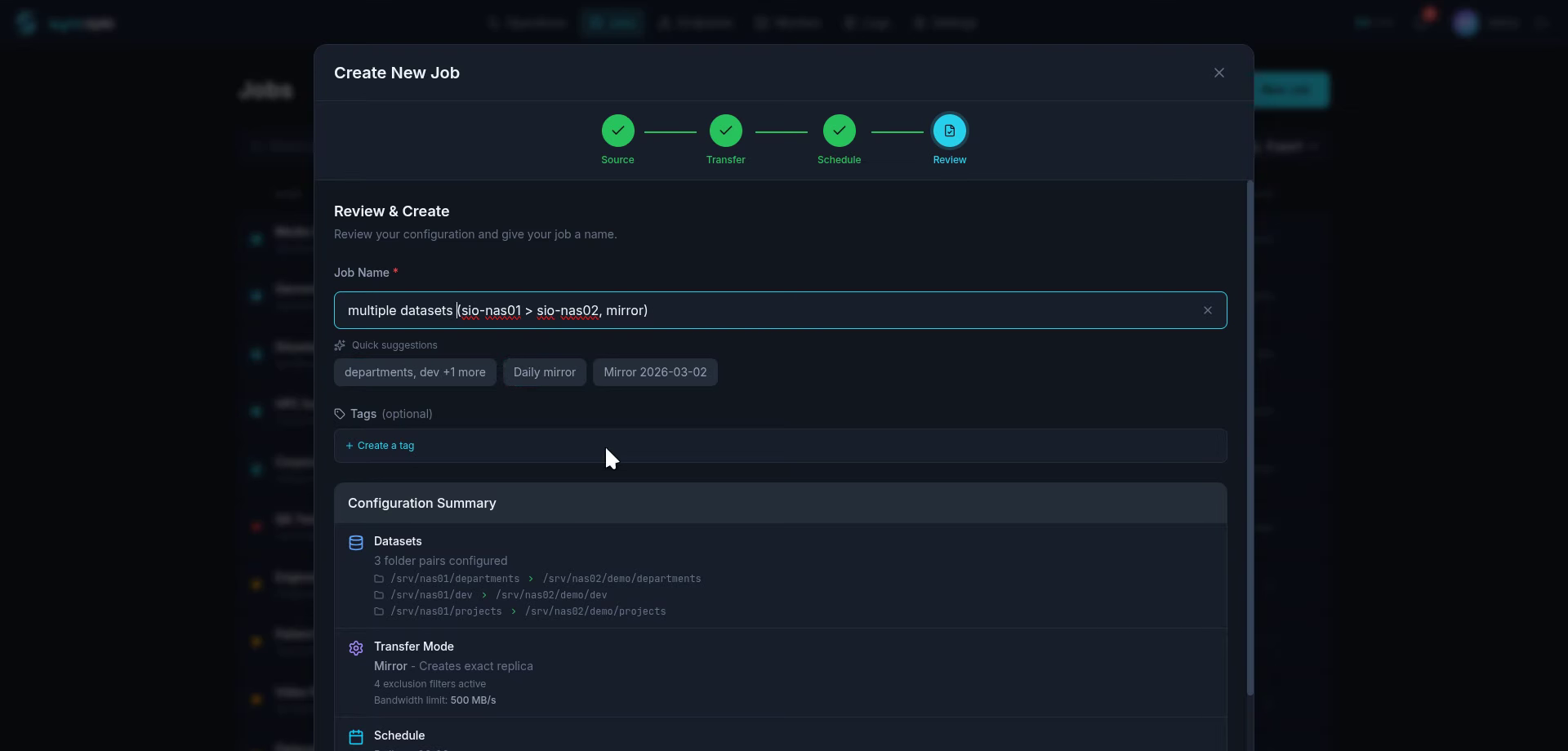
Using syncopio
- Add both NAS units as endpoints in syncopio (NFS or SMB)
- Create a migration job with source and destination datasets
- Run a discovery scan to analyze the data
- Start the migration — monitor progress in the web dashboard
- Run incremental syncs until cutover
- Final verification pass with checksums
Pros
- Cross-platform — works with any NAS that supports NFS, SMB, or SSH
- Incremental sync — run multiple pre-migration syncs with minimal downtime
- Checksum verification — confirm data integrity after transfer
- Full visibility — syncopio dashboard shows real-time progress
Cross-platform with visibility
syncopio handles the NFS/SMB mounting, progress monitoring, and checksum verification automatically. No rsync flags to remember, no log files to parse. See all features.
Cross-Platform Migration Guide
Synology to TrueNAS
- Export NFS shares from Synology (Control Panel > File Services > NFS)
- Create datasets on TrueNAS (Storage > Pools > Add Dataset)
- rsync or syncopio the data across
- Recreate shares on TrueNAS (Sharing > NFS / SMB)
- Update DNS/mount points for client access
Synology to QNAP
- Enable NFS on both NAS units
- Create shared folders on QNAP matching the Synology structure
- rsync or syncopio the data
- Recreate user accounts on QNAP
- Test ACL/permission mapping before cutover
Any NAS to Any NAS
The universal approach:
- Enable NFS or SMB on both source and destination
- Use rsync (CLI) or syncopio (web UI) for the transfer
- Run incremental syncs to minimize cutover window
- Verify with checksums
- Update client mount points
For the complete methodology, see our Data Migration Complete Guide.
Choosing the Right Method
| Your Situation | Recommended Method |
|---|---|
| Synology → same-gen Synology, small data | Migration Assistant |
| Hardware upgrade, can tolerate downtime | HDD Migration |
| Need a verified backup before switching | Hyper Backup |
| Cross-platform migration (any NAS) | rsync / syncopio |
| Large dataset (50TB+), need visibility | syncopio |
| Multiple NAS units → single destination | syncopio |
Further Reading
- Data Migration: The Complete Guide — end-to-end methodology
- Setting Up NFS Exports — configure NFS on any platform
- The Complete rsync Guide — master rsync for migrations
- NFS vs SMB: When to Use Each — protocol selection