The Complete rsync Guide: 30 Commands Every Admin Should Know
Master rsync with 30 essential commands organized by use case. From basic copies to advanced mirroring, bandwidth throttling, and troubleshooting.
TL;DR
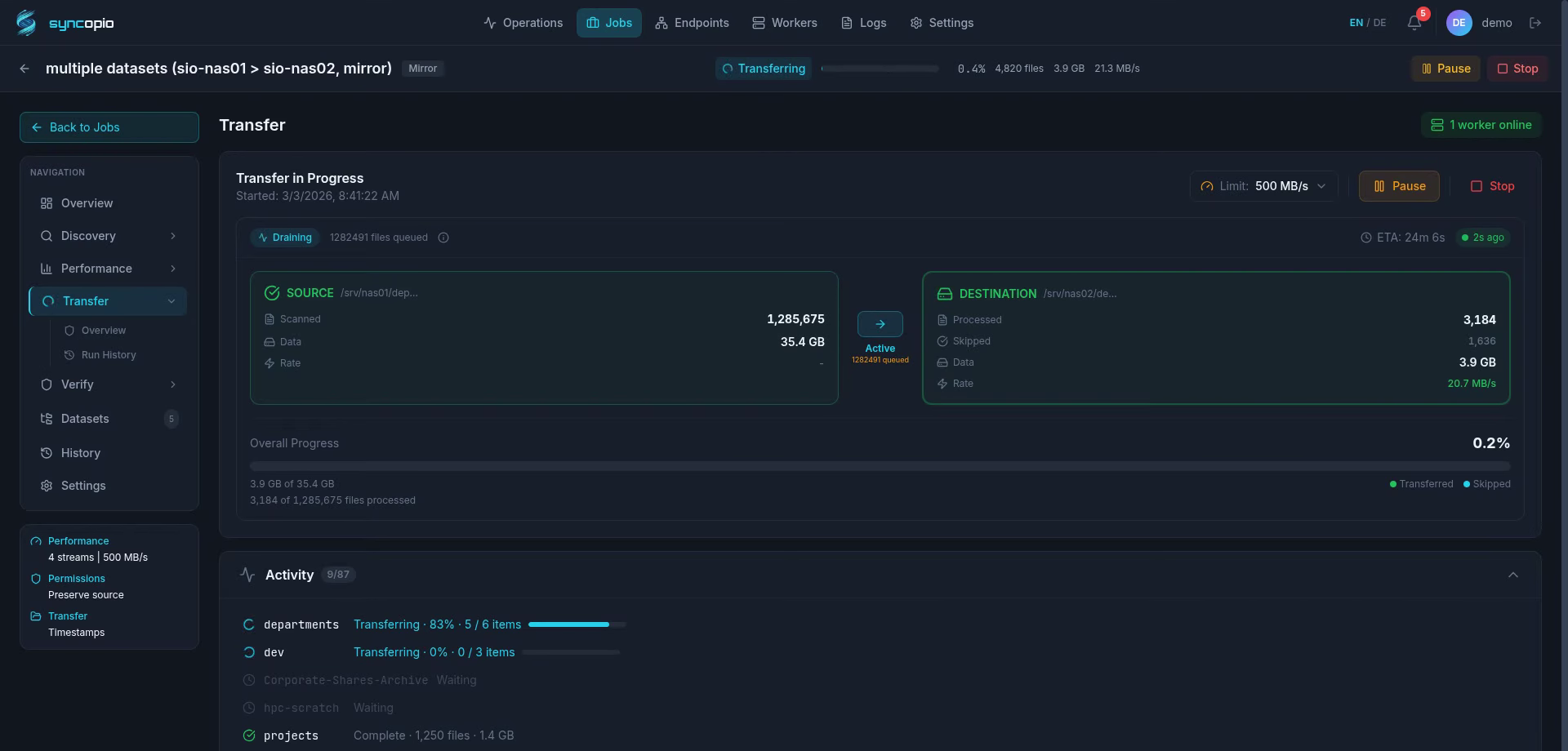
rsync is powerful but complex — 30+ flags, single-threaded, no dashboard, no built-in verification. Great for simple copies, but enterprise migrations need more. syncopio replaces rsync scripting with parallel transfers, inline checksum verification, and a real-time web UI — no flags to memorize.
rsync is the Swiss Army knife of file transfer. Whether you’re backing up a laptop, mirroring servers, or running a multi-terabyte migration, rsync has a flag for it. This guide covers 30 essential commands organized by use case — from day-one basics to production-grade workflows.
What is rsync?
rsync (remote sync) is a file copying utility first released in 1996 by Andrew Tridgell and Paul Mackerras. It’s famous for its delta-transfer algorithm, which sends only the differences between source and destination files, dramatically reducing network traffic on subsequent syncs.
Key characteristics:
- Incremental transfers — only changed bytes are sent
- Preserves metadata — timestamps, permissions, ownership, symlinks
- Compression — optional on-the-wire compression
- Available everywhere — pre-installed on virtually every Linux/Unix system
Basic Syntax
rsync [OPTIONS] SOURCE DESTINATION
- Local copy:
rsync -av /src/ /dest/ - Push to remote:
rsync -av /src/ user@host:/dest/ - Pull from remote:
rsync -av user@host:/src/ /dest/
Trailing slash matters
rsync -av /src/ /dest/ copies the contents of /src into /dest.
rsync -av /src /dest/ copies the directory itself, creating /dest/src/.
This trailing-slash difference is the #1 source of rsync mistakes.
Section 1: Basic Copy & Sync (Commands 1–8)
1. Archive mode copy
rsync -av /source/ /destination/
The -a (archive) flag preserves permissions, timestamps, symlinks, and ownership. -v adds verbose output. This is your everyday workhorse.
2. Dry run — preview before copying
rsync -avn /source/ /destination/
Add -n (or --dry-run) to see what would happen without actually transferring anything. Always dry-run first on large or destructive operations.
3. Copy with progress display
rsync -av --progress /source/ /destination/
Shows per-file progress — useful for large files. For overall progress on many files, use --info=progress2 (rsync 3.1+).
4. Overall transfer progress
rsync -av --info=progress2 /source/ /destination/
Shows a single progress line with total bytes transferred, percentage, and speed — much cleaner than per-file progress for bulk transfers.
5. Copy to/from a remote server via SSH
rsync -avz -e ssh /local/data/ user@server:/remote/data/
The -e ssh flag (default in modern rsync) uses SSH for the transport. Add -z for compression — useful over WAN links.
6. Copy with a custom SSH port
rsync -av -e "ssh -p 2222" /local/ user@server:/remote/
Wrapping the SSH command lets you specify non-standard ports, identity files, or any SSH option.
7. Recursive copy of specific file types
rsync -av --include='*.log' --exclude='*' /source/ /destination/
Copies only .log files. The --include/--exclude order matters — rsync evaluates rules top-to-bottom.
8. Exclude specific directories
rsync -av --exclude='.git' --exclude='node_modules' /project/ /backup/
Skip directories you don’t need in backups. Use --exclude-from=file.txt for complex exclusion lists.
Section 2: Mirroring & Deletion (Commands 9–14)
9. Mirror source to destination (with delete)
rsync -av --delete /source/ /destination/
Destructive operation
—delete removes files from the destination that don’t exist on the source. Combined with a wrong trailing slash, this can wipe out data. Always dry-run first.
10. Delete files before transfer
rsync -av --delete-before /source/ /destination/
Frees up space on the destination before copying new files. Useful when the destination is nearly full.
11. Delete files after transfer
rsync -av --delete-after /source/ /destination/
Safer than --delete-before — new files arrive before old ones are removed. Default behavior of --delete.
12. Move files (delete from source after transfer)
rsync -av --remove-source-files /source/ /destination/
Transfers files then deletes them from the source. Note: only deletes files, not empty directories.
13. Update only — skip newer files on destination
rsync -av --update /source/ /destination/
Skip files that are newer on the destination. Useful when multiple sources contribute to one destination.
14. Mirror with checksum verification
rsync -avc --delete /source/ /destination/
The -c flag uses checksums instead of timestamp+size to determine which files need updating. Slower but catches corruption.
Section 3: Performance & Bandwidth (Commands 15–20)
15. Limit bandwidth
rsync -av --bwlimit=50000 /source/ user@server:/destination/
Limits transfer to ~50 MB/s (value in KiB/s). Essential for migrations that share bandwidth with production traffic.
16. Enable compression
rsync -avz /source/ user@server:/destination/
The -z flag compresses data in transit. Beneficial for text-heavy transfers over slow links. Skip it on fast LANs — compression adds CPU overhead.
17. Parallel rsync with find
find /source/ -maxdepth 1 -type d | xargs -P 4 -I {} rsync -av {} /destination/
Runs 4 parallel rsync processes, one per top-level directory. Crude but effective for saturating fast networks.
18. Transfer with I/O priority
ionice -c2 -n7 rsync -av /source/ /destination/
Runs rsync at the lowest I/O priority to avoid impacting production workloads.
19. Resume interrupted transfer
rsync -av --partial --progress /source/ /destination/
The --partial flag keeps partially transferred files so rsync can resume where it left off. Add --partial-dir=.rsync-partial to keep partials in a hidden directory.
20. Whole-file mode (skip delta algorithm)
rsync -avW /source/ /destination/
The -W flag sends whole files instead of computing deltas. Faster for initial copies on fast networks where delta computation is wasted CPU.
Section 4: Advanced Workflows (Commands 21–26)
21. Backup with hard links (incremental snapshots)
rsync -av --delete --link-dest=/backups/latest /source/ /backups/2026-02-25/
ln -snf /backups/2026-02-25 /backups/latest
Creates space-efficient incremental backups using hard links. Unchanged files share disk space with the previous backup.
22. Preserve ACLs and extended attributes
rsync -avAX /source/ /destination/
-A preserves ACLs, -X preserves extended attributes. Required for complete metadata preservation on Linux filesystems.
23. Log to a file
rsync -av --log-file=/var/log/rsync-migration.log /source/ /destination/
Creates a detailed log of every file transferred, skipped, or deleted. Essential for audit trails.
24. Transfer files matching a pattern from a list
rsync -av --files-from=filelist.txt /source/ /destination/
Copies only the files listed in filelist.txt (one path per line, relative to source). Useful for selective migrations.
25. Compare directories without copying
rsync -avn --delete /source/ /destination/ | grep "deleting\|>f"
Uses dry-run mode to show which files differ between source and destination. A quick diff tool.
26. Sync over rsync daemon (no SSH)
rsync -av rsync://server/module/ /destination/
Connects to an rsync daemon (rsyncd) instead of SSH. Useful for anonymous or high-performance transfers on trusted networks.
Section 5: Safety & Troubleshooting (Commands 27–30)
27. Maximum file size filter
rsync -av --max-size=100M /source/ /destination/
Skips files larger than 100MB. Useful for separating large files that need special handling.
28. Set timeout for stalled transfers
rsync -av --timeout=300 /source/ user@server:/destination/
Kills the transfer if no data is received for 300 seconds. Prevents hung rsync processes.
29. Checksum-only verification (no transfer)
rsync -avn --checksum /source/ /destination/
Compares checksums without transferring anything — a pure verification pass.
30. Verbose stats summary
rsync -av --stats /source/ /destination/
Prints a summary at the end showing total files, bytes transferred, speedup ratio, and more.
Troubleshooting Common Issues
| Problem | Likely Cause | Fix |
|---|---|---|
| ”Permission denied” on destination | User lacks write access | Check ownership and chmod; use --no-perms if permissions don’t matter |
| Transfer is extremely slow | Many small files, high latency | Use --whole-file, increase MaxStartups in sshd_config |
| ”rsync error: some files vanished” | Files deleted during scan | Usually harmless; use --ignore-missing-args |
| Files re-transferred every time | Timestamp precision mismatch (NFS) | Use --modify-window=1 or --checksum |
| ”Argument list too long” | Too many files in one directory | Use --files-from or `find |
| Symlinks not preserved | Missing -l flag | Use -a (includes -l) or -l explicitly |
Performance Tips
- Use
--whole-filefor initial copies — delta computation is wasted on files that don’t exist yet - Disable compression on LANs — CPU overhead outweighs savings on 1Gbps+ networks
- Parallelize by directory — use
xargs -Por GNU parallel for multiple streams - Tune SSH ciphers —
ssh -c aes128-gcm@openssh.comis faster than the default - Increase I/O buffers —
--sockopts=SO_SNDBUF=4194304on high-latency links
When rsync Isn’t Enough
rsync is brilliant for what it does, but it has real limitations for enterprise migrations:
- No web dashboard — you’re reading terminal output or parsing log files
- No distributed workers — one process, one machine, one bottleneck
- No built-in verification — you must run a second pass with
--checksum - No job management — no pause, resume, schedule, or audit trail
- No multi-protocol — rsync speaks rsync. If you need NFS + SMB + S3 in one migration, you need separate tools
syncopio does all of this with a web UI
syncopio wraps the power of rsync-style transfers in a web dashboard with distributed workers, built-in verification, multi-protocol support (NFS, SMB, S3), and real-time monitoring. See all features or compare syncopio vs rsync in detail.
Further Reading
- rsync vs rclone vs Robocopy: Which Tool in 2026? — head-to-head comparison
- Data Migration: The Complete Guide — end-to-end migration planning
- syncopio vs rsync — detailed feature comparison
- Why Checksums Matter — data integrity deep-dive